> ## Documentation Index
> Fetch the complete documentation index at: https://docs-staging-docs-ia-custom-database-connections.mintlify.site/llms.txt
> Use this file to discover all available pages before exploring further.

> Learn how to configure a progressive profile form using Forms for Actions

# Use Cases: Configure a progressive profile form using Forms

<Card title="Before you start">
  1. Create a [Machine-to-Machine Application](/docs/get-started/auth0-overview/create-applications/machine-to-machine-apps) with the following scopes enabled:

  * `read:users`
  * `update:users`
  * `create:users`
  * `read:users_app_metadata`
  * `update:users_app_metadata`
  * `create:users_app_metadata`

  2. Add a [Vault connection](/docs/customize/forms/vault) using the M2M application credentials.
</Card>

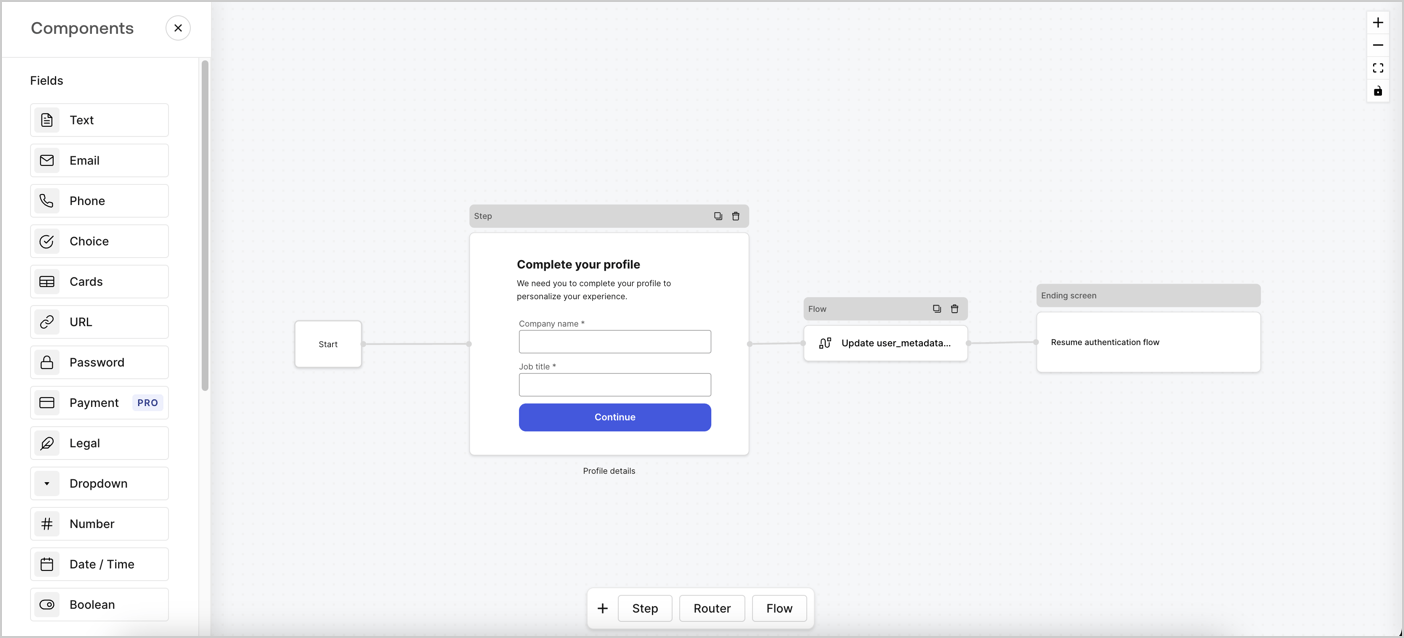
Forms for Actions allows you to create progressive profiling flows to decide when to prompt users to collect missing information, such as company name and job title, and store them as `user_metadata` attributes.
<Frame>
  <img src="https://mintcdn.com/docs-staging-docs-ia-custom-database-connections/fAqcvIZzRUvnc_CG/docs/images/cdy7uua7fh8z/xUx9YmnHvnAqL19JvNtNP/60dae88f893d4ebe8e3523421e960596/Progressive-profle-overview.png?fit=max&auto=format&n=fAqcvIZzRUvnc_CG&q=85&s=93576d99b7bef35be96c48c162a65097" alt="Dashboard > Actions > Forms > Form" data-og-width="1404" width="1404" data-og-height="638" height="638" data-path="docs/images/cdy7uua7fh8z/xUx9YmnHvnAqL19JvNtNP/60dae88f893d4ebe8e3523421e960596/Progressive-profle-overview.png" data-optimize="true" data-opv="3" srcset="https://mintcdn.com/docs-staging-docs-ia-custom-database-connections/fAqcvIZzRUvnc_CG/docs/images/cdy7uua7fh8z/xUx9YmnHvnAqL19JvNtNP/60dae88f893d4ebe8e3523421e960596/Progressive-profle-overview.png?w=280&fit=max&auto=format&n=fAqcvIZzRUvnc_CG&q=85&s=104bbd6fc6ccc0985e2061e3f1843302 280w, https://mintcdn.com/docs-staging-docs-ia-custom-database-connections/fAqcvIZzRUvnc_CG/docs/images/cdy7uua7fh8z/xUx9YmnHvnAqL19JvNtNP/60dae88f893d4ebe8e3523421e960596/Progressive-profle-overview.png?w=560&fit=max&auto=format&n=fAqcvIZzRUvnc_CG&q=85&s=4c420bc4c406c89e57a40abbb6b5a5cb 560w, https://mintcdn.com/docs-staging-docs-ia-custom-database-connections/fAqcvIZzRUvnc_CG/docs/images/cdy7uua7fh8z/xUx9YmnHvnAqL19JvNtNP/60dae88f893d4ebe8e3523421e960596/Progressive-profle-overview.png?w=840&fit=max&auto=format&n=fAqcvIZzRUvnc_CG&q=85&s=8ec11aad0c36c91d405fc4f7e5022abb 840w, https://mintcdn.com/docs-staging-docs-ia-custom-database-connections/fAqcvIZzRUvnc_CG/docs/images/cdy7uua7fh8z/xUx9YmnHvnAqL19JvNtNP/60dae88f893d4ebe8e3523421e960596/Progressive-profle-overview.png?w=1100&fit=max&auto=format&n=fAqcvIZzRUvnc_CG&q=85&s=3ba806c3e9a14f0f6783824dbc1b442f 1100w, https://mintcdn.com/docs-staging-docs-ia-custom-database-connections/fAqcvIZzRUvnc_CG/docs/images/cdy7uua7fh8z/xUx9YmnHvnAqL19JvNtNP/60dae88f893d4ebe8e3523421e960596/Progressive-profle-overview.png?w=1650&fit=max&auto=format&n=fAqcvIZzRUvnc_CG&q=85&s=6dfa78c33ea13a8b4c3e8539ce7352a3 1650w, https://mintcdn.com/docs-staging-docs-ia-custom-database-connections/fAqcvIZzRUvnc_CG/docs/images/cdy7uua7fh8z/xUx9YmnHvnAqL19JvNtNP/60dae88f893d4ebe8e3523421e960596/Progressive-profle-overview.png?w=2500&fit=max&auto=format&n=fAqcvIZzRUvnc_CG&q=85&s=88c4c5580622950d0a808761686fc7e0 2500w" />
</Frame>

The sections below outline how you can create a progressive profile form using nodes and flows, along with steps for adding your form to a [Post Login Action](/docs/customize/actions/explore-triggers/signup-and-login-triggers/login-trigger).

## Create a form from scratch

Follow these steps to create a form to gather information:

1. Open the Form editor by selecting **Auth0 Dashboard > Actions > Forms.**
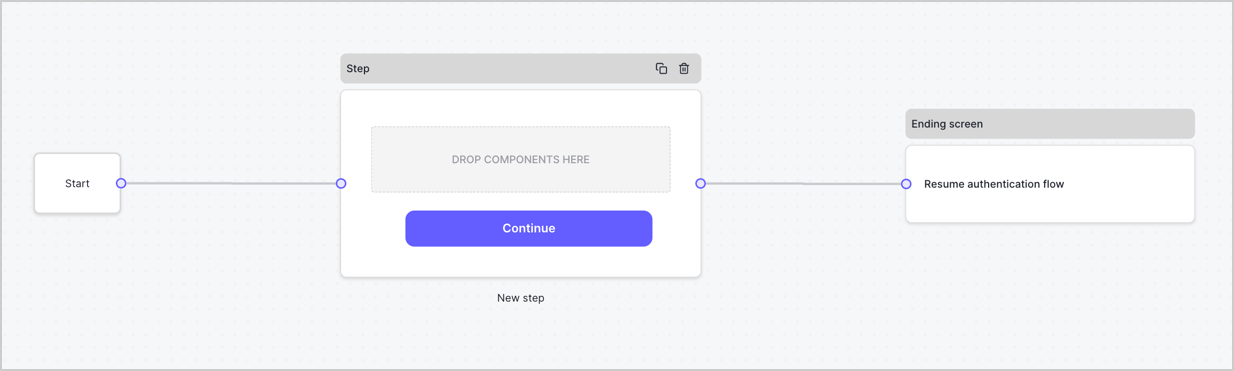
2. Select **Create Form** > **Start from scratch**.

By default, a new form contains a Start node, a Step node, and an Ending screen node.
<Frame>
  <img src="https://mintcdn.com/docs-staging-docs-ia-custom-database-connections/KuQLr_6PmoTHxAly/docs/images/cdy7uua7fh8z/2TZ9jSjgEcARFpULI6hz4R/a4319a1bd482f2ee5cc23100fdb2f42c/New-form-Forms-for-action-use-case.png?fit=max&auto=format&n=KuQLr_6PmoTHxAly&q=85&s=75c8c347165508a8ceae62e49f48f8b7" alt="Dashboard > Forms > Use Cases > Form" data-og-width="1234" width="1234" data-og-height="371" height="371" data-path="docs/images/cdy7uua7fh8z/2TZ9jSjgEcARFpULI6hz4R/a4319a1bd482f2ee5cc23100fdb2f42c/New-form-Forms-for-action-use-case.png" data-optimize="true" data-opv="3" srcset="https://mintcdn.com/docs-staging-docs-ia-custom-database-connections/KuQLr_6PmoTHxAly/docs/images/cdy7uua7fh8z/2TZ9jSjgEcARFpULI6hz4R/a4319a1bd482f2ee5cc23100fdb2f42c/New-form-Forms-for-action-use-case.png?w=280&fit=max&auto=format&n=KuQLr_6PmoTHxAly&q=85&s=ce90a3303ff86a555c8d6a2c9fe51181 280w, https://mintcdn.com/docs-staging-docs-ia-custom-database-connections/KuQLr_6PmoTHxAly/docs/images/cdy7uua7fh8z/2TZ9jSjgEcARFpULI6hz4R/a4319a1bd482f2ee5cc23100fdb2f42c/New-form-Forms-for-action-use-case.png?w=560&fit=max&auto=format&n=KuQLr_6PmoTHxAly&q=85&s=5f366a312cf53628df17825eebcbe56e 560w, https://mintcdn.com/docs-staging-docs-ia-custom-database-connections/KuQLr_6PmoTHxAly/docs/images/cdy7uua7fh8z/2TZ9jSjgEcARFpULI6hz4R/a4319a1bd482f2ee5cc23100fdb2f42c/New-form-Forms-for-action-use-case.png?w=840&fit=max&auto=format&n=KuQLr_6PmoTHxAly&q=85&s=40e132f55b25319321c931f9e48c3de9 840w, https://mintcdn.com/docs-staging-docs-ia-custom-database-connections/KuQLr_6PmoTHxAly/docs/images/cdy7uua7fh8z/2TZ9jSjgEcARFpULI6hz4R/a4319a1bd482f2ee5cc23100fdb2f42c/New-form-Forms-for-action-use-case.png?w=1100&fit=max&auto=format&n=KuQLr_6PmoTHxAly&q=85&s=3ccc3dd6e0d36bb2cd1ec78c30b713b6 1100w, https://mintcdn.com/docs-staging-docs-ia-custom-database-connections/KuQLr_6PmoTHxAly/docs/images/cdy7uua7fh8z/2TZ9jSjgEcARFpULI6hz4R/a4319a1bd482f2ee5cc23100fdb2f42c/New-form-Forms-for-action-use-case.png?w=1650&fit=max&auto=format&n=KuQLr_6PmoTHxAly&q=85&s=ce3ef28bcf716f5928d9cd14e69992cf 1650w, https://mintcdn.com/docs-staging-docs-ia-custom-database-connections/KuQLr_6PmoTHxAly/docs/images/cdy7uua7fh8z/2TZ9jSjgEcARFpULI6hz4R/a4319a1bd482f2ee5cc23100fdb2f42c/New-form-Forms-for-action-use-case.png?w=2500&fit=max&auto=format&n=KuQLr_6PmoTHxAly&q=85&s=349b48da2f39a4f52129c1bfe2c4ef17 2500w" />
</Frame>

### Configure the Step node

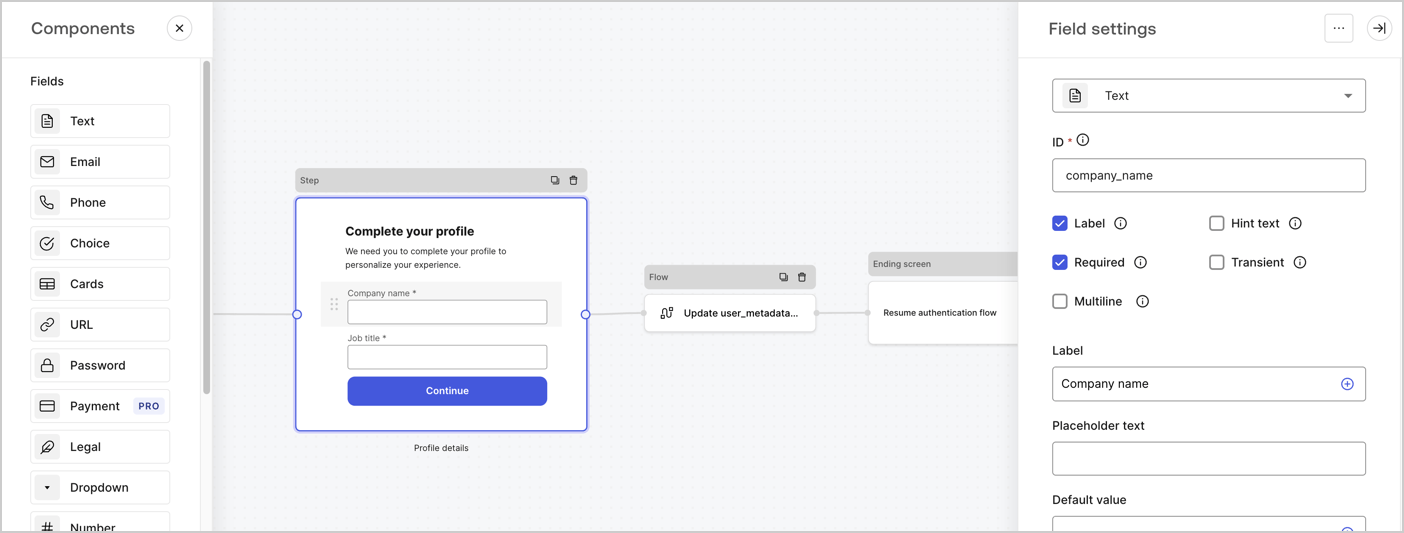
The Step node is the graphical interface visible to users. Add [Fields](/docs/customize/forms/nodes-and-components) to the Step node to collect the user's company name and job title values by following these steps:

1. Drag a **Rich text** field from the **Components menu** into the **Step** node.

   * **Rich text**: Enter a custom message.

     * **Example**: `Complete your profile! We need you to complete your profile to personalize your experience.`
   * Select **Save**.
2. Drag a **Text** field into the **Step** node.

   * **ID**: Enter `company_name`.
   * **Label**: Enable the checkbox.
   * **Label**: Enter `Company name`.
   * **Required**: Enable the checkbox.
   * Select **Save**.
3. Drag a **Text** field into the **Step** node.

   1. **ID**: Enter `job_title`.
   2. **Label**: Enter `Job title`.
   3. **Label**: Enable the checkbox.
   4. **Required**: Enable the checkbox.
   5. Select **Save**.
4. Select **Publish** to save.
<Frame>
  <img src="https://mintcdn.com/docs-staging-docs-ia-custom-database-connections/JWORpyOPsa11uP0R/docs/images/cdy7uua7fh8z/6H1lRzwKyYioQyQJ9MtIoM/aa248e92fc028a68a5b92ff361a11644/progressive-profile-step.png?fit=max&auto=format&n=JWORpyOPsa11uP0R&q=85&s=857222caf3f75bea7552ebbbc3e41dff" alt="Dashboard > Actions > Forms > Form > Step node" data-og-width="1404" width="1404" data-og-height="533" height="533" data-path="docs/images/cdy7uua7fh8z/6H1lRzwKyYioQyQJ9MtIoM/aa248e92fc028a68a5b92ff361a11644/progressive-profile-step.png" data-optimize="true" data-opv="3" srcset="https://mintcdn.com/docs-staging-docs-ia-custom-database-connections/JWORpyOPsa11uP0R/docs/images/cdy7uua7fh8z/6H1lRzwKyYioQyQJ9MtIoM/aa248e92fc028a68a5b92ff361a11644/progressive-profile-step.png?w=280&fit=max&auto=format&n=JWORpyOPsa11uP0R&q=85&s=651625499121a6f302522fc2a5f908ab 280w, https://mintcdn.com/docs-staging-docs-ia-custom-database-connections/JWORpyOPsa11uP0R/docs/images/cdy7uua7fh8z/6H1lRzwKyYioQyQJ9MtIoM/aa248e92fc028a68a5b92ff361a11644/progressive-profile-step.png?w=560&fit=max&auto=format&n=JWORpyOPsa11uP0R&q=85&s=8b85b66d4d297194bf38d8422c1120ec 560w, https://mintcdn.com/docs-staging-docs-ia-custom-database-connections/JWORpyOPsa11uP0R/docs/images/cdy7uua7fh8z/6H1lRzwKyYioQyQJ9MtIoM/aa248e92fc028a68a5b92ff361a11644/progressive-profile-step.png?w=840&fit=max&auto=format&n=JWORpyOPsa11uP0R&q=85&s=1085e4010e13b17baf00116f0937dcaf 840w, https://mintcdn.com/docs-staging-docs-ia-custom-database-connections/JWORpyOPsa11uP0R/docs/images/cdy7uua7fh8z/6H1lRzwKyYioQyQJ9MtIoM/aa248e92fc028a68a5b92ff361a11644/progressive-profile-step.png?w=1100&fit=max&auto=format&n=JWORpyOPsa11uP0R&q=85&s=f62d862febb7e973ac388e827550333b 1100w, https://mintcdn.com/docs-staging-docs-ia-custom-database-connections/JWORpyOPsa11uP0R/docs/images/cdy7uua7fh8z/6H1lRzwKyYioQyQJ9MtIoM/aa248e92fc028a68a5b92ff361a11644/progressive-profile-step.png?w=1650&fit=max&auto=format&n=JWORpyOPsa11uP0R&q=85&s=482d62a458feea7a4698dcd4d67bc124 1650w, https://mintcdn.com/docs-staging-docs-ia-custom-database-connections/JWORpyOPsa11uP0R/docs/images/cdy7uua7fh8z/6H1lRzwKyYioQyQJ9MtIoM/aa248e92fc028a68a5b92ff361a11644/progressive-profile-step.png?w=2500&fit=max&auto=format&n=JWORpyOPsa11uP0R&q=85&s=1edea7e70c9e7570ddec1fd203652bb6 2500w" />
</Frame>

### Configure the flow node

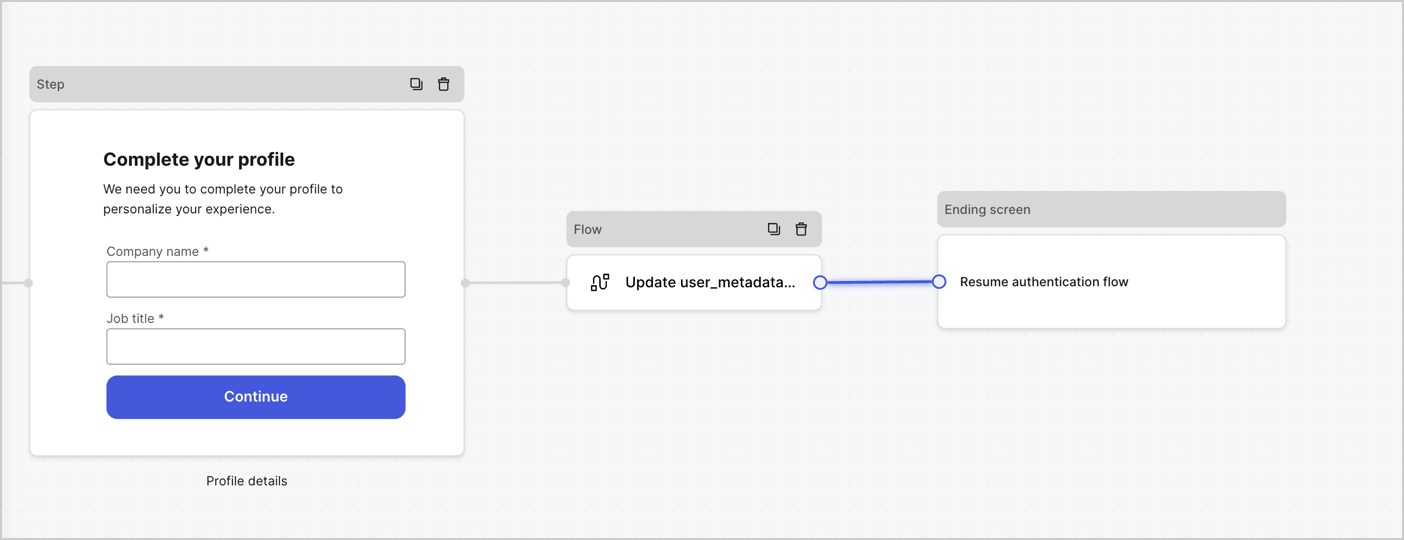
Add a **Flow** node after the **Step** node to update the `user_metadata` and resume the authentication flow by following these steps:

1. Select **Flow** from the bottom of the Form editor.
2. Remove the existing link between the **Step** and **Ending Screen** nodes.
3. Select the new **Flow** > **Click to add a flow** > **Create a new flow.**

   * Enter `Update user_metadata` in the **Name** field.
   * Select **Create**.
   * Select **Save**.
4. Link the **Flow** node to the **Step** and **Ending Screen** nodes as pictured below.
5. Select **Publish** to save.
<Frame>
  <img src="https://mintcdn.com/docs-staging-docs-ia-custom-database-connections/ybu1eTIpF8QemAl3/docs/images/cdy7uua7fh8z/5C91DaWn4LGtJT9BF87ssu/095171d0c452a287c44bfde12fd6d13f/link-nodes.png?fit=max&auto=format&n=ybu1eTIpF8QemAl3&q=85&s=f52b76a6636da1ee8b4c3f72c4d96967" alt="Dashboard > Actions > Forms > Form" data-og-width="1404" width="1404" data-og-height="540" height="540" data-path="docs/images/cdy7uua7fh8z/5C91DaWn4LGtJT9BF87ssu/095171d0c452a287c44bfde12fd6d13f/link-nodes.png" data-optimize="true" data-opv="3" srcset="https://mintcdn.com/docs-staging-docs-ia-custom-database-connections/ybu1eTIpF8QemAl3/docs/images/cdy7uua7fh8z/5C91DaWn4LGtJT9BF87ssu/095171d0c452a287c44bfde12fd6d13f/link-nodes.png?w=280&fit=max&auto=format&n=ybu1eTIpF8QemAl3&q=85&s=ae8b509bb59c6a2cf52f793a697038af 280w, https://mintcdn.com/docs-staging-docs-ia-custom-database-connections/ybu1eTIpF8QemAl3/docs/images/cdy7uua7fh8z/5C91DaWn4LGtJT9BF87ssu/095171d0c452a287c44bfde12fd6d13f/link-nodes.png?w=560&fit=max&auto=format&n=ybu1eTIpF8QemAl3&q=85&s=afa84d0f3605361463e6f9dda9163d0e 560w, https://mintcdn.com/docs-staging-docs-ia-custom-database-connections/ybu1eTIpF8QemAl3/docs/images/cdy7uua7fh8z/5C91DaWn4LGtJT9BF87ssu/095171d0c452a287c44bfde12fd6d13f/link-nodes.png?w=840&fit=max&auto=format&n=ybu1eTIpF8QemAl3&q=85&s=60a81c1e0900741fb4b46c4e82d6d510 840w, https://mintcdn.com/docs-staging-docs-ia-custom-database-connections/ybu1eTIpF8QemAl3/docs/images/cdy7uua7fh8z/5C91DaWn4LGtJT9BF87ssu/095171d0c452a287c44bfde12fd6d13f/link-nodes.png?w=1100&fit=max&auto=format&n=ybu1eTIpF8QemAl3&q=85&s=a9ffdc40f8d64847964e6da9ae8aabb4 1100w, https://mintcdn.com/docs-staging-docs-ia-custom-database-connections/ybu1eTIpF8QemAl3/docs/images/cdy7uua7fh8z/5C91DaWn4LGtJT9BF87ssu/095171d0c452a287c44bfde12fd6d13f/link-nodes.png?w=1650&fit=max&auto=format&n=ybu1eTIpF8QemAl3&q=85&s=b8fc1c6ff02b235a641448c7b58c33be 1650w, https://mintcdn.com/docs-staging-docs-ia-custom-database-connections/ybu1eTIpF8QemAl3/docs/images/cdy7uua7fh8z/5C91DaWn4LGtJT9BF87ssu/095171d0c452a287c44bfde12fd6d13f/link-nodes.png?w=2500&fit=max&auto=format&n=ybu1eTIpF8QemAl3&q=85&s=8fd5fa9576ceb9ed8c4016944502e427 2500w" />
</Frame>

Add an Auth0 Update user action to the flow by following these steps:

1. Select the **Update user\_metadata** flow, then select the **Edit Flow** to open the Flow editor in a new tab.
2. Below the **Start** action, select the **+** icon to add an **Update user** action. Complete the fields below, then select **Save** to continue.

   * **Connection**: Select from the dropdown the Vault connection to your M2M application.

   * **User ID**: Enter `{{context.user.user_id}}`.

   * **Body**: Copy and paste the following code to update the user\_metadata with `job_title` and `company_name` properties.

     ```json lines theme={null}
     {
        "user_metadata": {
           "job_title": "{{fields.job_title}}",
           "company_name": "{{fields.company_name}}"
        }
     }
     ```

   * Select **Save**.
3. Select **Publish** to save.

<Frame>
  <img src="https://mintcdn.com/docs-staging-docs-ia-custom-database-connections/MpDBdzDAGJJa-9jf/docs/images/cdy7uua7fh8z/65Jx4W5oIZJyyvA8z4HqIx/0661b1a8ca6361c54fc4fef07ba59f0b/update-user.png?fit=max&auto=format&n=MpDBdzDAGJJa-9jf&q=85&s=371787503133c7981260e564eea747ec" alt="Dashboard > Actions > Forms > Flows" data-og-width="1404" width="1404" data-og-height="244" height="244" data-path="docs/images/cdy7uua7fh8z/65Jx4W5oIZJyyvA8z4HqIx/0661b1a8ca6361c54fc4fef07ba59f0b/update-user.png" data-optimize="true" data-opv="3" srcset="https://mintcdn.com/docs-staging-docs-ia-custom-database-connections/MpDBdzDAGJJa-9jf/docs/images/cdy7uua7fh8z/65Jx4W5oIZJyyvA8z4HqIx/0661b1a8ca6361c54fc4fef07ba59f0b/update-user.png?w=280&fit=max&auto=format&n=MpDBdzDAGJJa-9jf&q=85&s=685d0f7f3d90c76ed7d300084185732c 280w, https://mintcdn.com/docs-staging-docs-ia-custom-database-connections/MpDBdzDAGJJa-9jf/docs/images/cdy7uua7fh8z/65Jx4W5oIZJyyvA8z4HqIx/0661b1a8ca6361c54fc4fef07ba59f0b/update-user.png?w=560&fit=max&auto=format&n=MpDBdzDAGJJa-9jf&q=85&s=2ba6da97d2ccb276f110e43fadbf7cbd 560w, https://mintcdn.com/docs-staging-docs-ia-custom-database-connections/MpDBdzDAGJJa-9jf/docs/images/cdy7uua7fh8z/65Jx4W5oIZJyyvA8z4HqIx/0661b1a8ca6361c54fc4fef07ba59f0b/update-user.png?w=840&fit=max&auto=format&n=MpDBdzDAGJJa-9jf&q=85&s=0c78357f7023bca1914f9b3d62d9b208 840w, https://mintcdn.com/docs-staging-docs-ia-custom-database-connections/MpDBdzDAGJJa-9jf/docs/images/cdy7uua7fh8z/65Jx4W5oIZJyyvA8z4HqIx/0661b1a8ca6361c54fc4fef07ba59f0b/update-user.png?w=1100&fit=max&auto=format&n=MpDBdzDAGJJa-9jf&q=85&s=cf3b1364bc743caa3b2e0c4949430faa 1100w, https://mintcdn.com/docs-staging-docs-ia-custom-database-connections/MpDBdzDAGJJa-9jf/docs/images/cdy7uua7fh8z/65Jx4W5oIZJyyvA8z4HqIx/0661b1a8ca6361c54fc4fef07ba59f0b/update-user.png?w=1650&fit=max&auto=format&n=MpDBdzDAGJJa-9jf&q=85&s=f25ebd85bfdc510e98f5f94064ddcd65 1650w, https://mintcdn.com/docs-staging-docs-ia-custom-database-connections/MpDBdzDAGJJa-9jf/docs/images/cdy7uua7fh8z/65Jx4W5oIZJyyvA8z4HqIx/0661b1a8ca6361c54fc4fef07ba59f0b/update-user.png?w=2500&fit=max&auto=format&n=MpDBdzDAGJJa-9jf&q=85&s=46a3d369ca7bea3373770dd7f4b8ae67 2500w" />
</Frame>

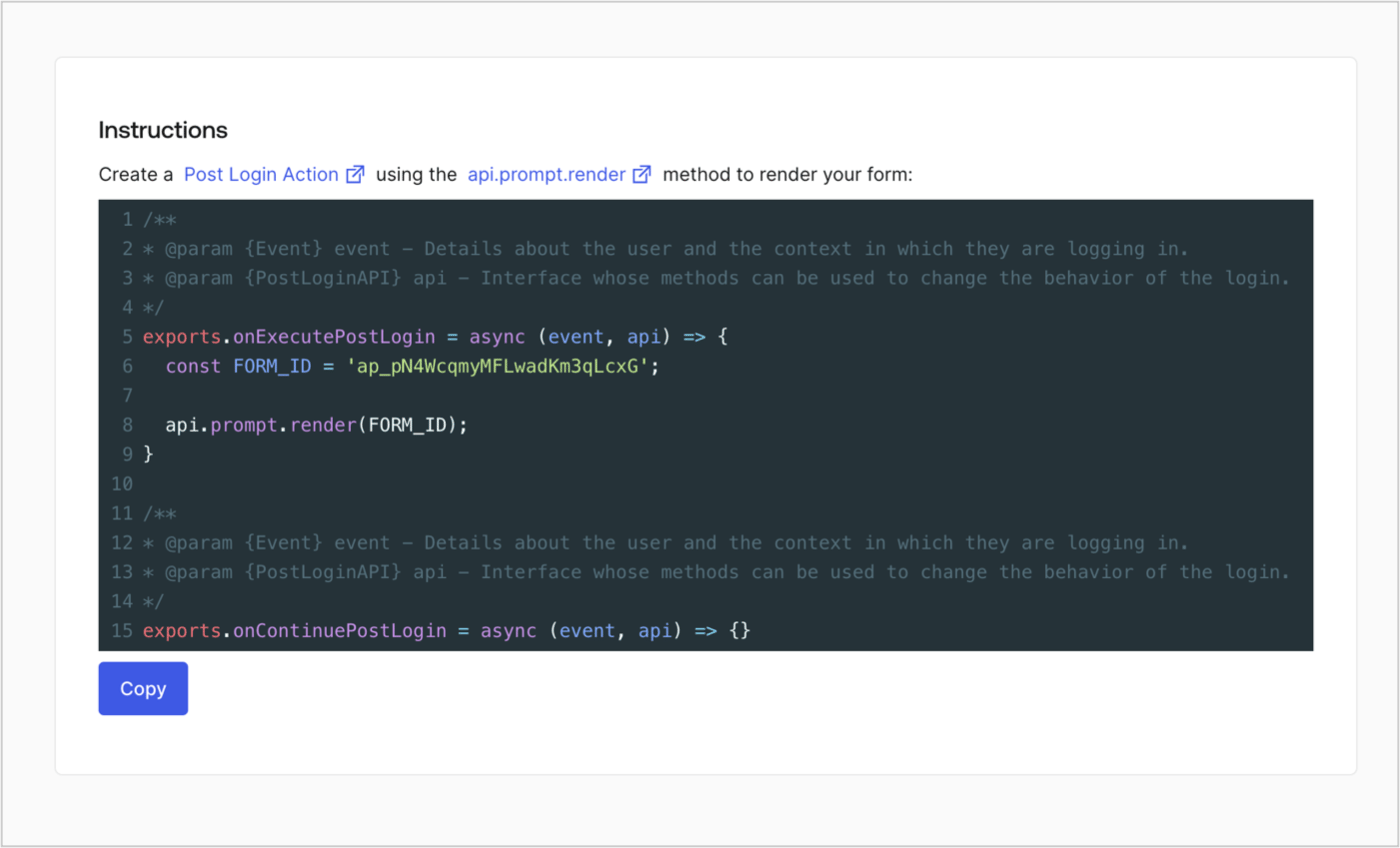
### Retrieve the form render code

Retrieve the form render code to visually render the form with a custom Post Login Action by following these steps:

* From the Form editor, select **`<> Render`**.
* Select **Copy**.
<Frame>
  <img src="https://mintcdn.com/docs-staging-docs-ia-custom-database-connections/L3zf4A6yfBj46S-s/docs/images/cdy7uua7fh8z/2EIUzc539sq9lwoTKbjoJv/496a864c0fc44a782c9cadca119dbfb0/embed.png?fit=max&auto=format&n=L3zf4A6yfBj46S-s&q=85&s=f67dcf4e7d611b07471ffb1991ffbebd" alt="Dashboard > Actions > Forms > Form > Embed" data-og-width="1400" width="1400" data-og-height="848" height="848" data-path="docs/images/cdy7uua7fh8z/2EIUzc539sq9lwoTKbjoJv/496a864c0fc44a782c9cadca119dbfb0/embed.png" data-optimize="true" data-opv="3" srcset="https://mintcdn.com/docs-staging-docs-ia-custom-database-connections/L3zf4A6yfBj46S-s/docs/images/cdy7uua7fh8z/2EIUzc539sq9lwoTKbjoJv/496a864c0fc44a782c9cadca119dbfb0/embed.png?w=280&fit=max&auto=format&n=L3zf4A6yfBj46S-s&q=85&s=22d3f34e35c32cc0d876dc667a980d62 280w, https://mintcdn.com/docs-staging-docs-ia-custom-database-connections/L3zf4A6yfBj46S-s/docs/images/cdy7uua7fh8z/2EIUzc539sq9lwoTKbjoJv/496a864c0fc44a782c9cadca119dbfb0/embed.png?w=560&fit=max&auto=format&n=L3zf4A6yfBj46S-s&q=85&s=b7a37257960ff5ed4987812114704253 560w, https://mintcdn.com/docs-staging-docs-ia-custom-database-connections/L3zf4A6yfBj46S-s/docs/images/cdy7uua7fh8z/2EIUzc539sq9lwoTKbjoJv/496a864c0fc44a782c9cadca119dbfb0/embed.png?w=840&fit=max&auto=format&n=L3zf4A6yfBj46S-s&q=85&s=f771b2c32c8036850b4d6a834b3ff46f 840w, https://mintcdn.com/docs-staging-docs-ia-custom-database-connections/L3zf4A6yfBj46S-s/docs/images/cdy7uua7fh8z/2EIUzc539sq9lwoTKbjoJv/496a864c0fc44a782c9cadca119dbfb0/embed.png?w=1100&fit=max&auto=format&n=L3zf4A6yfBj46S-s&q=85&s=0ca10edef615c5c29323b8a143bd2600 1100w, https://mintcdn.com/docs-staging-docs-ia-custom-database-connections/L3zf4A6yfBj46S-s/docs/images/cdy7uua7fh8z/2EIUzc539sq9lwoTKbjoJv/496a864c0fc44a782c9cadca119dbfb0/embed.png?w=1650&fit=max&auto=format&n=L3zf4A6yfBj46S-s&q=85&s=500331f0db10e47a2c8dcad27f73d86c 1650w, https://mintcdn.com/docs-staging-docs-ia-custom-database-connections/L3zf4A6yfBj46S-s/docs/images/cdy7uua7fh8z/2EIUzc539sq9lwoTKbjoJv/496a864c0fc44a782c9cadca119dbfb0/embed.png?w=2500&fit=max&auto=format&n=L3zf4A6yfBj46S-s&q=85&s=c7a1b36471998ee69c6ae474ed95ade2 2500w" />
</Frame>

## Create a Post Login Action

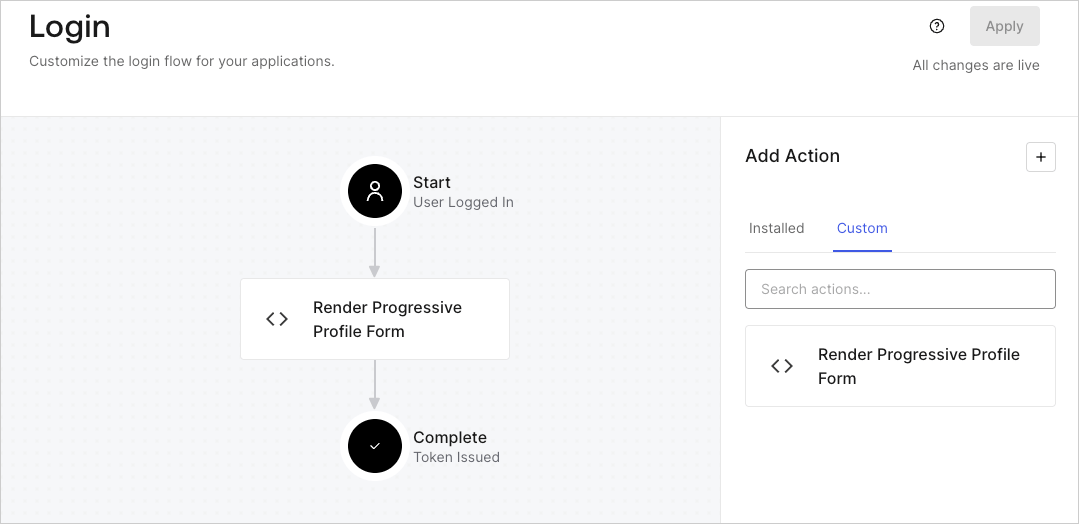
Create a post-login Action to render your form by following these steps:

1. Navigate to **Auth0 Dashboard > Actions > Flows > Login.**
2. Select the **+** icon and select **Build from scratch**:

   * **Name**: Enter `Render Progressive Profile Form`.
   * **Trigger**: Select `Login / Post Login`.
   * **Runtime**: Select the recommended version.
3. Select **Create**.

To configure the post-login Action:

1. Delete the existing code from the Code editor.
2. Paste the form embed code into the Code editor.
3. Edit the code to define the conditional logic that will render the form.

   ```javascript lines theme={null}
   /**
   * @param {Event} event - Details about the user and the context in which they are logging in.
   * @param {PostLoginAPI} api - Interface whose methods can be used to change the behavior of the login.
   */
   exports.onExecutePostLogin = async (event, api) => {
     const FORM_ID = 'REPLACE_WITH_YOUR_FORM_ID';

     if (
       event.stats.logins_count > 2 &&
       !event.user.user_metadata.company_name &&
       !event.user.user_metadata.job_title
     ) {
       api.prompt.render(FORM_ID);
     }
   }

   exports.onContinuePostLogin = async (event, api) => { }
   ```

   <Callout icon="file-lines" color="#0EA5E9" iconType="regular">
     The example code above will render the form when a user has a login count > 2 and is missing the user metadata company\_name and job\_title properties.
   </Callout>
4. Select **Deploy.**
5. Drag and Drop the **Render Progressive Profile Form** Action to the **Login** flow.
   <Frame>
     <img src="https://mintcdn.com/docs-staging-docs-ia-custom-database-connections/TnQ1cS3IKgZqfjOT/docs/images/cdy7uua7fh8z/1QjjZdpTqTxx012UDN4xk9/99fba5ef4068a5688f1762eea7f42976/renderprogessiveprofile.png?fit=max&auto=format&n=TnQ1cS3IKgZqfjOT&q=85&s=b738d43155f01a66dacea1625eb7a85d" alt="Dashboard > Forms > Use Cases Progressive Profile Login Action" data-og-width="1079" width="1079" data-og-height="524" height="524" data-path="docs/images/cdy7uua7fh8z/1QjjZdpTqTxx012UDN4xk9/99fba5ef4068a5688f1762eea7f42976/renderprogessiveprofile.png" data-optimize="true" data-opv="3" srcset="https://mintcdn.com/docs-staging-docs-ia-custom-database-connections/TnQ1cS3IKgZqfjOT/docs/images/cdy7uua7fh8z/1QjjZdpTqTxx012UDN4xk9/99fba5ef4068a5688f1762eea7f42976/renderprogessiveprofile.png?w=280&fit=max&auto=format&n=TnQ1cS3IKgZqfjOT&q=85&s=ce32edc3f3c9cc6568765260547ca58d 280w, https://mintcdn.com/docs-staging-docs-ia-custom-database-connections/TnQ1cS3IKgZqfjOT/docs/images/cdy7uua7fh8z/1QjjZdpTqTxx012UDN4xk9/99fba5ef4068a5688f1762eea7f42976/renderprogessiveprofile.png?w=560&fit=max&auto=format&n=TnQ1cS3IKgZqfjOT&q=85&s=9ee72c01e942d19e8c3eb0df09375eda 560w, https://mintcdn.com/docs-staging-docs-ia-custom-database-connections/TnQ1cS3IKgZqfjOT/docs/images/cdy7uua7fh8z/1QjjZdpTqTxx012UDN4xk9/99fba5ef4068a5688f1762eea7f42976/renderprogessiveprofile.png?w=840&fit=max&auto=format&n=TnQ1cS3IKgZqfjOT&q=85&s=77518e0b56ea89e3ace006eaba99deed 840w, https://mintcdn.com/docs-staging-docs-ia-custom-database-connections/TnQ1cS3IKgZqfjOT/docs/images/cdy7uua7fh8z/1QjjZdpTqTxx012UDN4xk9/99fba5ef4068a5688f1762eea7f42976/renderprogessiveprofile.png?w=1100&fit=max&auto=format&n=TnQ1cS3IKgZqfjOT&q=85&s=1f0cbd8bd3e3ab92dfb8b58ca3b2e6f5 1100w, https://mintcdn.com/docs-staging-docs-ia-custom-database-connections/TnQ1cS3IKgZqfjOT/docs/images/cdy7uua7fh8z/1QjjZdpTqTxx012UDN4xk9/99fba5ef4068a5688f1762eea7f42976/renderprogessiveprofile.png?w=1650&fit=max&auto=format&n=TnQ1cS3IKgZqfjOT&q=85&s=bedafdb5f29066dc9895fb766334ee35 1650w, https://mintcdn.com/docs-staging-docs-ia-custom-database-connections/TnQ1cS3IKgZqfjOT/docs/images/cdy7uua7fh8z/1QjjZdpTqTxx012UDN4xk9/99fba5ef4068a5688f1762eea7f42976/renderprogessiveprofile.png?w=2500&fit=max&auto=format&n=TnQ1cS3IKgZqfjOT&q=85&s=d8f65f5bf923e997607c57ecfdcdab43 2500w" />
   </Frame>
6. Select **Apply**.

### Test implementation

Test the implementation by following these steps:

1. Log in with an existing user whose login count is greater than 2 and their `user_metadata` attributes `company_name` and `job_title` have no values.
2. The post-login action in the Login flow will render the form and prompt for the information.
3. Select **Auth0 Dashboard > User Management > Users,** locate the user and verify that the `user_metadata` attributes `company_name` and `job_title` contain information.
